Git 常用命令与工作流程笔记
以下记录日常使用的 Git 命令、分支协作与认证配置。
Git 安装
1
2
|
yum install git  # centos
sudo apt-get install git  # ubuntu
|
Git 基础使用
创建版本库
1
|
git init # 初始化所在目录为Git仓库
|
初始化的目录可以不为空
添加文件到版本库
1
2
3
|
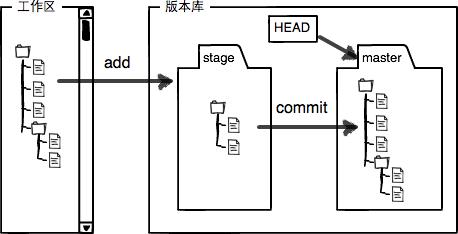
git add <file> ...  # 添加文件到暂存区(stage)
        -f <file> ...  # 强制添加到暂存区(可用于添加忽略文件)
git commit -m "提交说明"  # 从暂存区提交到版本库
|
git add 命令可多次执行,然后commit一次。
工作区和暂存区
工作区: 当前所在目录
暂存区: git add 命令执行后文件所在的位置
管理修改
查看状态、差异
1
2
3
4
|
git status  # 查看仓库当前状态
git diff [file]  # 比较工作区和暂存区的差异
git diff --cached [file]  # 比较暂存区和版本库的差异
git diff HEAD -- [file]  # 比较工作区和版本库的差异
|
版本切换
1
2
3
4
5
6
7
8
9
|
git log  # 查看提交历史
git log -1  # 查看最后一次提交信息(-2 则是最后两次)
git log --pretty=oneline  # 单行格式显示提交历史
        --graph  # 显示分支合并图
        --abbrev-commit  # 简写的commit_id
git reflog  # 查看所有操作记录,包括删除的commit记录
git reset --hard HEAD^  # 回退到上一版本
# HEAD 表当前版本, HEAD^ 表上一版本,HEAD^^ 表上两版本,HEAD~99 表上99版本。
git reset --hard commit_id  # 切换到指定版本
|
Git跟踪管理的是修改,而非文件
撤销修改
1
2
3
4
5
|
git checkout -- <file>  # 撤销工作区的修改
git reset HEAD <file>  # 撤销暂存区的修改
git reset --hard origin/master  # 删除本地代码,回滚到远程master分支
git reset --hard xxx  # 回滚到某个节点,并删除代码
get reset --soft xxx  # 回滚到某个节点,不删除代码,遇到代码异常,但不想回滚所有代码,可以使用soft,保留代码
|
若已commit但没提交到远程库,可用版本回退进行撤销
已经提交了修改,发现提交记录错误,仅修改最近一次
1
|
git commit --amend -m "add link"
|
https://cloud.tencent.com/developer/article/1730774
删除文件
1
2
3
|
rm <file> ...  #工作区删除
git add <file> ...  #将修改提交至暂存区
git commit -m "说明"  #提交到版本库
|
- 方法二:直接命令删除工作区和暂存区,然后提交版本库
1
2
|
git rm <file> ...  # 删除工作区和暂存区文件
git commit -m "说明"  # 提交到版本库
|
删除、增加文件也都属于修改
远程仓库
创建SSH Key
1
|
ssh-keygen -t rsa -C "user@example.com" #生成的Key在家目录.ssh文件夹里面,pub后缀是公钥,另一个是私钥。-C 指定秘钥的名称(可以不加该参数)
|
添加远程库
1
2
3
4
5
|
git remote add origin git@server-name:path/repo-name.git  #添加远程仓库
git remote  #查看远程库信息
git remote -v  #显示详细信息
git push -u origin <branch>  #推送并关联指定分支到远程库
git remote prune origin # 删除远程不存在的仓库
|
除第一次关联,之后push不用加-u选项
从远程库克隆
1
2
3
|
git clone git@server-name:path/repo-name.git  #将远程仓库克隆到当前目录
git pull  #拉取远程仓库内容
git remote add upstream git://github.com/user/repo_name.git  # 添加远程fork仓库
|
拉取远程分支并创建本地分支
1
|
git checkout -b feature_v1.5.10 origin/feature_v1.5.10 # git checkout -b 本地分支名 origin/远程分支名
|
分支管理
分支基础命令
 1
 2
 3
 4
 5
 6
 7
 8
 9
10
11
12
13
14
15
16
17
18
19
|
git branch <branch>  # 创建分支
git checkout <branch>  # 切换到指定分支
git checkout -b <branch>  # 创建并切换到该分支
git branch  # 查看现有分支
git branch -r # 查看所有远程分支
git branch -d <branch>  # 删除指定分支
git branch -D <branch>  # 强制删除指定分支
git branch --set-upstream <branch_local> <branch_remote>  # 指定本地分支与远程分支的链接
git merge <branch>  # 合并指定分支到当前分支
          --no-ff <branch>  # 禁用快速合并
git merge --no-ff -m "提交说明" <branch>  #普通方式合并,并附提交说明
git stash  # 保存当前工作环境(包括工作区和暂存区,用于处理临时新建bug分支,git stash/ git stash pop)
git stash list  # 查看保存的工作列表
git stash apply [stash@{X}]  # 恢复工作状态,但不删除stash内容
git stash pop [stash@{X}]  # 恢复工作状态,并删除stash内容
git stash drop [stash@{X}]  # 删除stash内容
git branch -D <branch>  # 强制删除分支(常用于未合并的分支)
git remote prune origin  # 删除远程已经删除过的分支
git rm --cached -rf themes/hugo-theme-stack  # 删除已添加的缓存
|
HEAD不是直接指向提交点,而是指向分支,分支再指向提交点
解决冲突
1
2
|
Git用<<<<<<<,=======,>>>>>>> 标记出不同分支的内容。
git log --graph --pretty=oneline --abbrev-commit  # 查看分支的合并情况
|
多人协作
1
2
3
|
##error: failed to push some refs to ...
1. git pull 远程库
2. 解决冲突(若有),再push
|
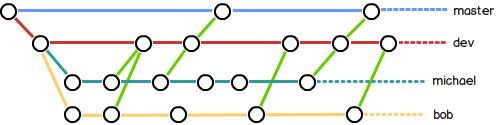
分支管理策略图
多人协作主要思想就是,各自开发对应的功能,然后汇总
具体到分支上的提现:各自在对应的功能分支上开发,然后汇总dev分支,最后合并到master分支上生产
标签管理
标签命令
 1
 2
 3
 4
 5
 6
 7
 8
 9
10
|
git tag  # 查看现有标签
git tag <tag_name>  # 给当前所在的commit打标签
git tag <tag_name> <commit_id>  # 给指定commit打标签
git tag -a <tag_name> -m "标签说明" <commit_id>  # 给指定commit打标签,并附说明
        -s <tag_name> -m "标签说明" <commit_id>  # 用gpg私钥签名
        -d <tag_name>  # 删除标签
git show <tag_name>  # 显示标签信息
git push origin <tag_name>  # 推送标签到远程库
git push origin --tags  # 推送所有未推送的标签到远程库
git push origin :refs/tags/<tag_name>  # 删除远程标签(先删除本地,再使用该命令删除)
|
自定义Git
Config基础命令
1
2
3
4
5
6
|
git config --global user.name "you_name"  # 设置全局用户名
git config --global user.email "user@example.com"  # 设置全局邮箱
git config --global color.ui true  # 设置全局颜色显示
git config --global alias.<alias_name> <'command_name'>  # 设置别名
git config (--global)  --list  # 查看全局配置
git config --global -edit  # 编辑命令
|
配置优先级
1
2
3
4
5
6
|
1、仓库级别 local 【优先级最高】
2、用户级别 global【优先级次之】
3、系统级别 system【优先级最低】
查看仓库级的config, 默认文件位置 .git/.config, 命令:git config –local -l
查看全局级的config, 默认文件位置 ~/.gitconfig, 命令:git config –global -l
查看系统级的config, 默认文件位置(默认不创建) /etc/gitconfig, 命令:git config –system -l
|
忽略特殊文件
- 工作区创建
.gitignore文件
- 内容举例,如下:
 1
 2
 3
 4
 5
 6
 7
 8
 9
10
11
12
13
14
15
|
#Windows:
Thumbs.db
ehthumbs.db
Desktop.ini

#Python:
*.py[cod]
*.so
*.egg
*.egg-info
dist
build
#My configurations:
db.ini
deploy_key_rsa
|
忽略文件配置命令
1
2
|
git check-ignore -v <file>  # 查看忽略该文件的规则
git check-ignore -v ./*  # 查看当前文件夹下哪些文件被忽略
|
规则有错时常用上述命令查找定位
配置别名列表
1
2
3
4
5
6
7
8
|
# git config --global alias.confg 'config --global'
git config --global alias.st status
git config --global alias.co checkout
git config --global alias.ci commit
git config --global alias.br branch
git config --global alias.unstage 'reset HEAD'
git config --global alias.last 'log -1'
git config --global alias.lg "log --color --graph --pretty=format:'%Cred%h%Creset -%C(yellow)%d%Creset %s %Cgreen(%cr) %C(bold blue)<%an>%Creset' --abbrev-commit"
|
PS: 一般公司系统中使用gitlab、gogs等第三方免费软件管理(附带权限)
Git 进阶
https://gitee.com/liaoxuefeng/learn-java/raw/master/teach/git-cheatsheet.pdf
Git 官方命令参考
http://git-scm.com/
Git 内部原理图解
github https 认证问题
使用https方式连接github是需要通过凭证进行用户认证的(这个后续可以抓包看下)
Git Credential Manager (GCM) is another way to store your credentials securely and connect to GitHub over HTTPS. With GCM, you don’t have to manually create and store a personal access token, as GCM manages authentication on your behalf, including 2FA (two-factor authentication).
Git Credential Manager (GCM) 是另一种安全存储凭据并通过 HTTPS 连接到 GitHub 的方法。使用 GCM,您不必手动创建和存储个人访问令牌,因为 GCM 会代表您管理身份验证,包括 2FA(双因素身份验证)。
需要安装证书管理
1
|
brew install --cask git-credential-manager
|
github 会连接本地这个地址访问
1
|
http://127.0.0.1:53180/?code=7e41b00000000005293b&state=aad92890000000000de08458c5e48cb7
|
然后跳转浏览器登录github,进行二次认证,最后识别。
可以在git config 里配置
1
|
git config credential.username "your username"
|
在config配置文件里能看见
1
2
|
[credential]
        username = credential-username
|
在下次登录的时候就可以直接登录了